
From quick questions to company-wide updates, Bloomfire brings your knowledge into the everyday moments where work happens in Microsoft Teams.
Bloomfire + Microsoft Teams
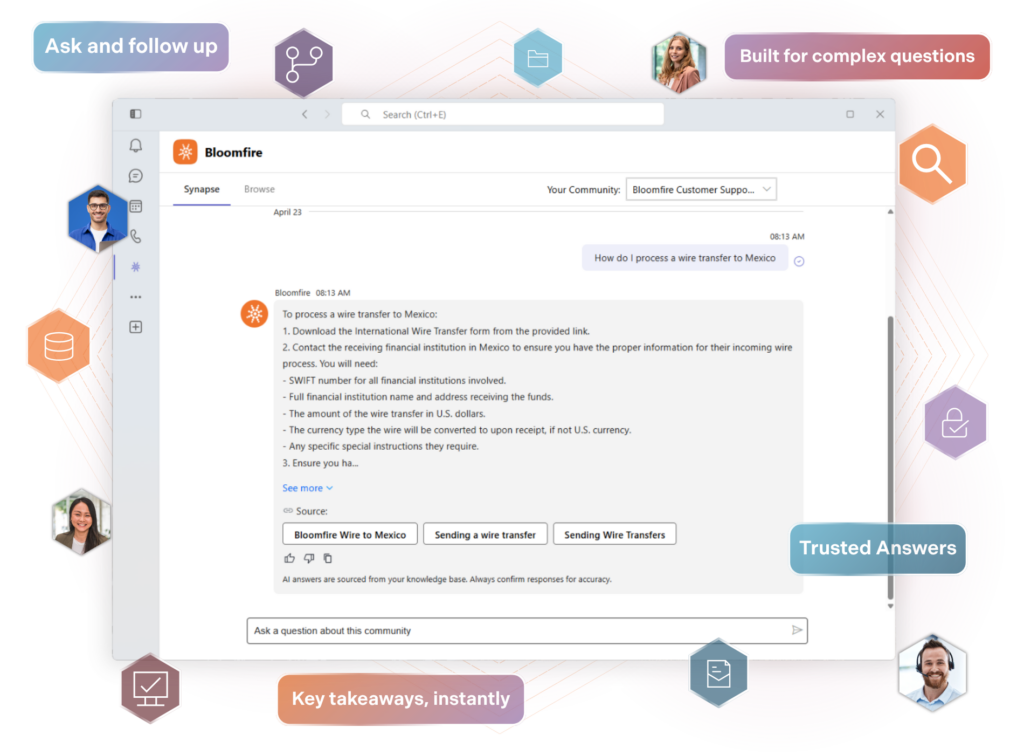
Chat with your company’s knowledge, search, and get verified answers without leaving Teams.
Add to Microsoft TeamsWhat you can do with Bloomfire in Teams

Conversational AI, inside Teams
Synapse is a full conversational experience. Ask follow-up questions, get answers grounded in your organization’s knowledge, and keep work moving without leaving Teams — at all.

Search Bloomfire content
Search your Bloomfire library without leaving Teams to quickly surface the most relevant pages, files, and posts, then open or share them right in the flow of work.
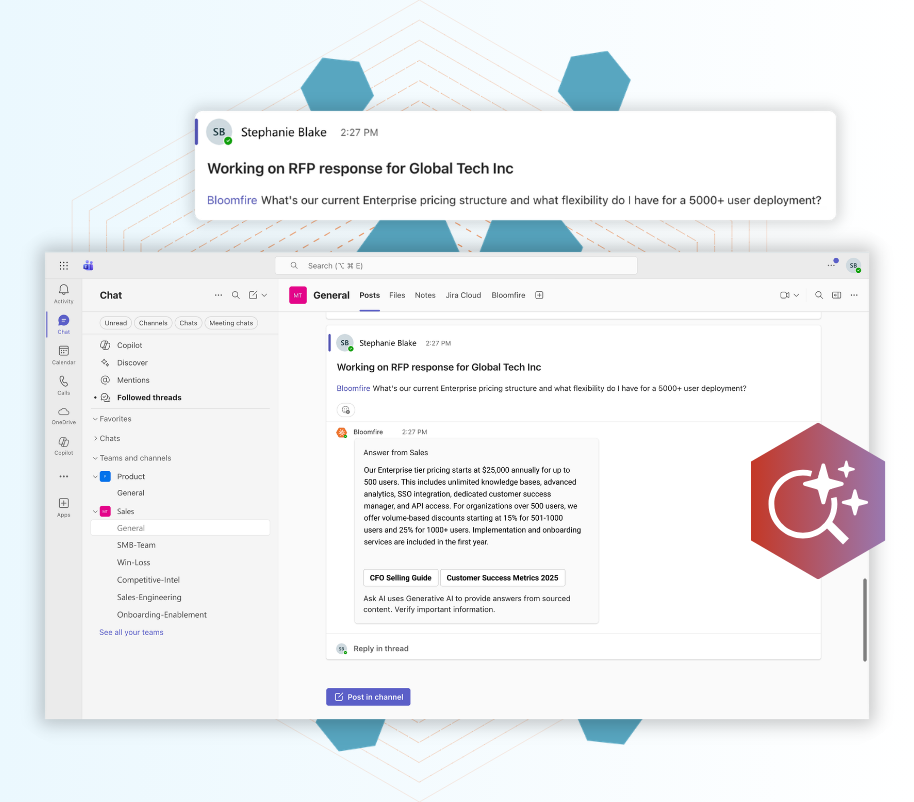
Ask in Channels
Share answers and content from Bloomfire directly into Teams channels and chats so everyone sees the same trusted source in context, reducing repeat questions and keeping decisions aligned.

Get Notified
Send Bloomfire updates—like new posts, questions, and changes—straight to the Teams channels your team already follows, so everyone stays informed and can jump to the right source with a single click.
Admins can now scope notifications to a specific group within a community, so the right team only gets updates relevant to them.
Connect Teams and Bloomfire
Add the Bloomfire integration to Teams now and follow the setup instructions.
01 – Install
Click the Install link below to be redirected to Bloomfire for Microsoft Teams app in Microsoft’s Appsource.
02 – Choose Community
Select Open Microsoft Teams when prompted.
03 – Authorize
Click the arrow next to the Add button and select Add to Team from the drop-down menu.
04 – Confirm & Setup
Enter the team or channel name where you want to install the Bloomfire app or select the drop-down arrow to see available teams and channels. Click Setup. The Bloomfire app will be installed on the team or channel you’ve selected.
Resources & Support
From setup to best practices, these resources help you connect Bloomfire to Microsoft Teams and use it with confidence.
How to Install the Bloomfire App
Learn how to install the Bloomfire app in Microsoft Teams and connect it to your knowledge base in just a few steps.
Learn MoreUse Synapse in Microsoft Teams Channels
Ask questions directly in Teams channels and get AI-powered answers grounded in your company’s trusted knowledge.
Learn MoreUse the Bloomfire Personal App
Synapse, browse, and search your Bloomfire knowledge base from your personal Teams app—without leaving your workflow.
Learn MoreConfigure Notifications
Add Bloomfire as a channel tab and set up notifications to keep teams informed when knowledge is updated.
Learn MoreBloomfire’s Teams FAQ
Find quick answers to common questions about using Bloomfire in Microsoft Teams, from setup to everyday use.
Learn More
Build your knowledge ecosystem
Connect knowledge pools of documents, conversations, media, data, and expertise with your Persistent Semantic Memory™ to ground your AI. Use our turn-key of connectors or build your own to connect to any enterprise systems.

Sign up for Innovation
The pace of innovation with AI is accelerating. Join an alpha group for early access to new turnkey Intelligence Modules, and help shape what comes next.